Fixture Information
When a fixture is selected, a list of revisions is shown. Many fixtures only have one revision. The revision list is displayed as a table. Selecting a revision displays more detailed information below the table.
A collapsible navigation area is displayed on the left side of the page.
Depending on the screen state, this area can be collapsed to make more room for the fixture details.
The breadcrumb header and the detail header display the selected manufacturer, fixture, and revision.
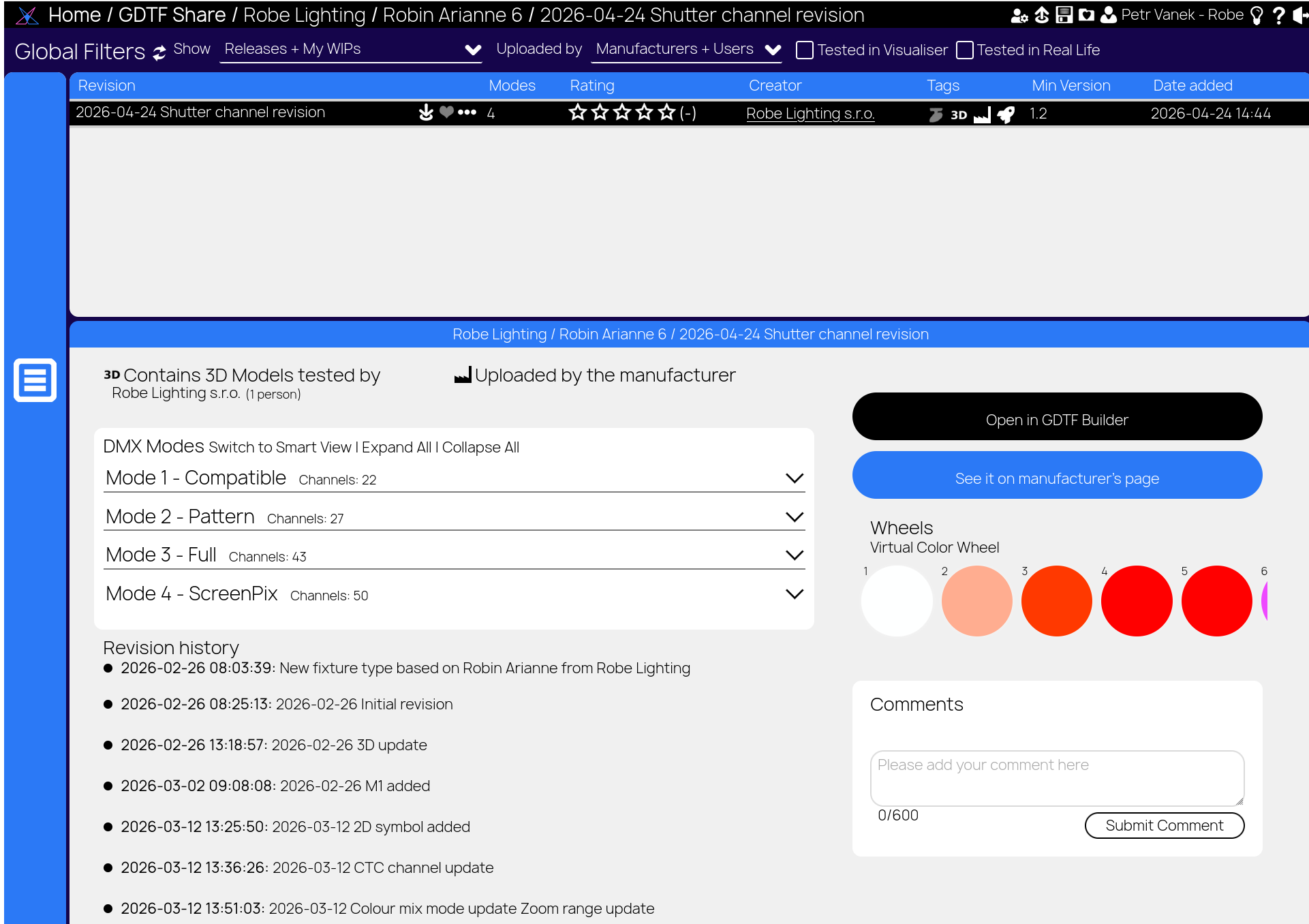
The revision list has the following columns:
- Revision: This is the name of the revision. Actions for the revision are displayed in the same column.
- Modes: This is the number of DMX modes in the revision.
- Rating: Each revision can be rated. The stars show the average user rating. The number of users who have rated the revision is displayed in brackets. If you have rated the revision, the stars are highlighted to show your rating. Please rate the revision only if you have tested it. You can also leave a comment.
- By: This is the name of the user who uploaded the revision.
- Tags: The tags indicate the status of the revision. For more information, see below.
- Min Version: This displays the GDTF version of this revision.
- Date added: This is the date and time the revision was uploaded.
Revision icons
Each revision has action icons next to the revision name.
Download
Download 
To start a download of this revision, click this icon.
Favorite
Favorite 
To toggle this icon between gray and white, click it.
White - the file/revision is marked as one of your favorite files. All your favorite files can be listed on the Favorite Files page and can be downloaded in one zip file from the Download Files page.
More
More 
More Menu
This opens a menu with additional actions for the selected revision. Depending on your permissions and the file state, the menu can contain the following entries:
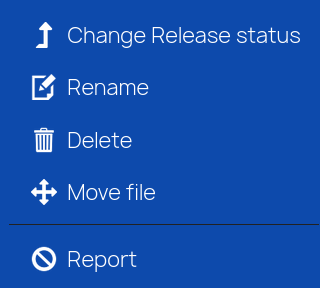
Change Release status
Change Release status allows you to mark your own files as Released or as Work In Progress (hidden).
Rename
Allows to alter the revision text.
Delete
Allows to Delete the file
Report
Provides means to report files with issues to their creators. This is often better then Comments as it provides room for more information and for contact details.
The available entries depend on whether the revision belongs to you and on the status of the file.
Revision tags
Each revision can show up to four tags.
- A gray icon indicates that the tag is not set.
- A white icon indicates that the tag is set.
Tested on real fixture 
This tag indicates that a user has tested the revision on a real fixture. Please only set this tag if you have tested the revision on a real fixture and found it useful.
Contains tested 3D models 
This tag indicates that a user has tested the revision in 3D visualisation software. Please only set this tag if you have tested the file in 3D visualisation software and found it useful.
Manufacturer 
This revision was uploaded by the manufacturer of the fixture.
Work in Progress 
This tag marks the revision as a work in progress instead of a release.
Revision Information
Information about the selected revision is displayed below the list of revisions.
If any of the Revision Tags are active for the file, additional information about those tags is shown. For example, it lists which users have added the tags.
There is also information about the channels and what attribute each channel controls. The DMX Modes section includes these controls:
- Switch to Smart View
- Expand All
- Collapse All
The smart view divides the channels into the geometries of the fixture. If the fixture only has one geometry, there may be little or no visible difference between the two views.
The Revision history is displayed below the DMX information.
On the right side, there is an Open in GDTF Builder button to edit the file in the GDTF Builder.
Comments
Write and submit comments here. For longer text and issue reporting it is better to use Report.