Manufacturer Page
The manufacturer page lets manufacturers present their brand, the GDTF files provided for their devices, or their software that uses MVR & GDTF.
Enable manufacturer page
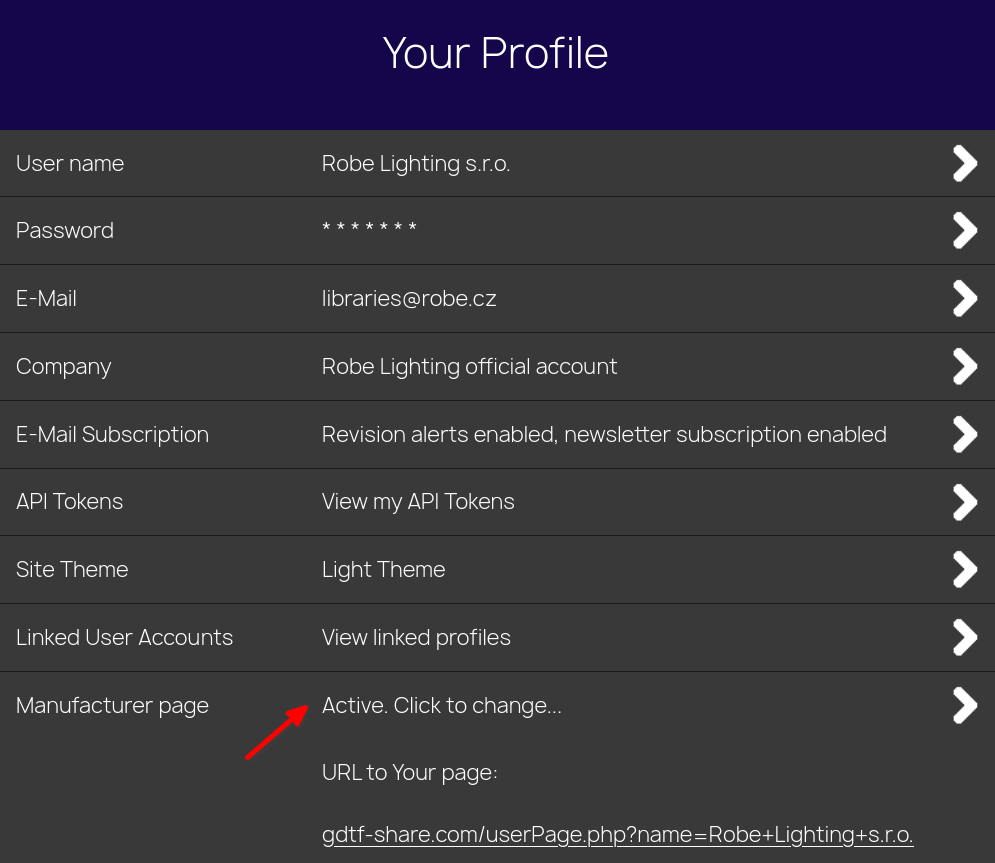
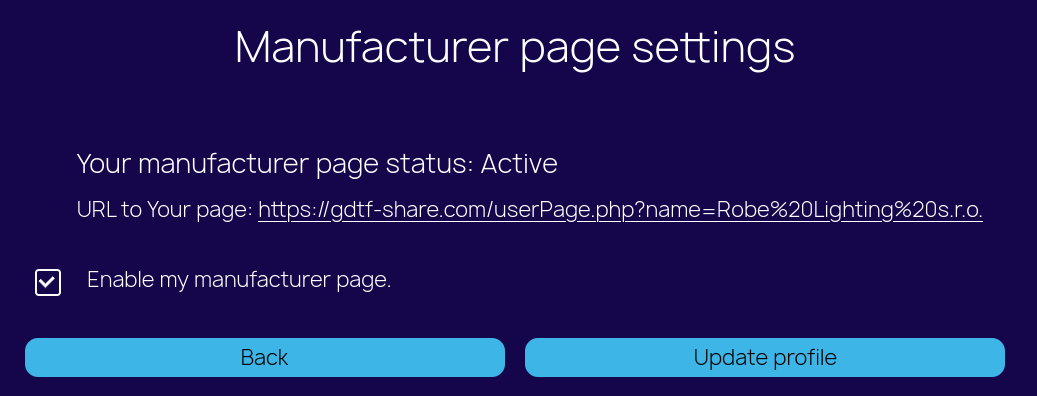
Once your account is marked as a manufacturer, enable your manufacturer page in GDTF Share to be listed in the Manufacturers section. You can enable this in the Edit Profile page of your account:
- Sign in to GDTF Share.
- Click the User icon:
 .
. - Click the Manufacturer page.
- Click Change.
- Select Active.
- Click Update Profile.
Customize the brand logo
Customize the page with your company logo. A good logo image is a PNG file with a transparent (alpha) background and a resolution of 512 x 512 pixels.
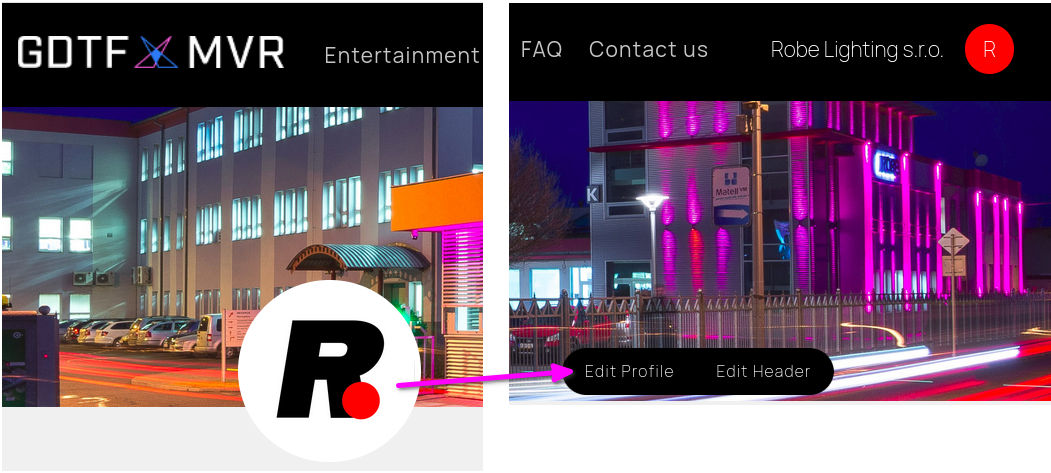
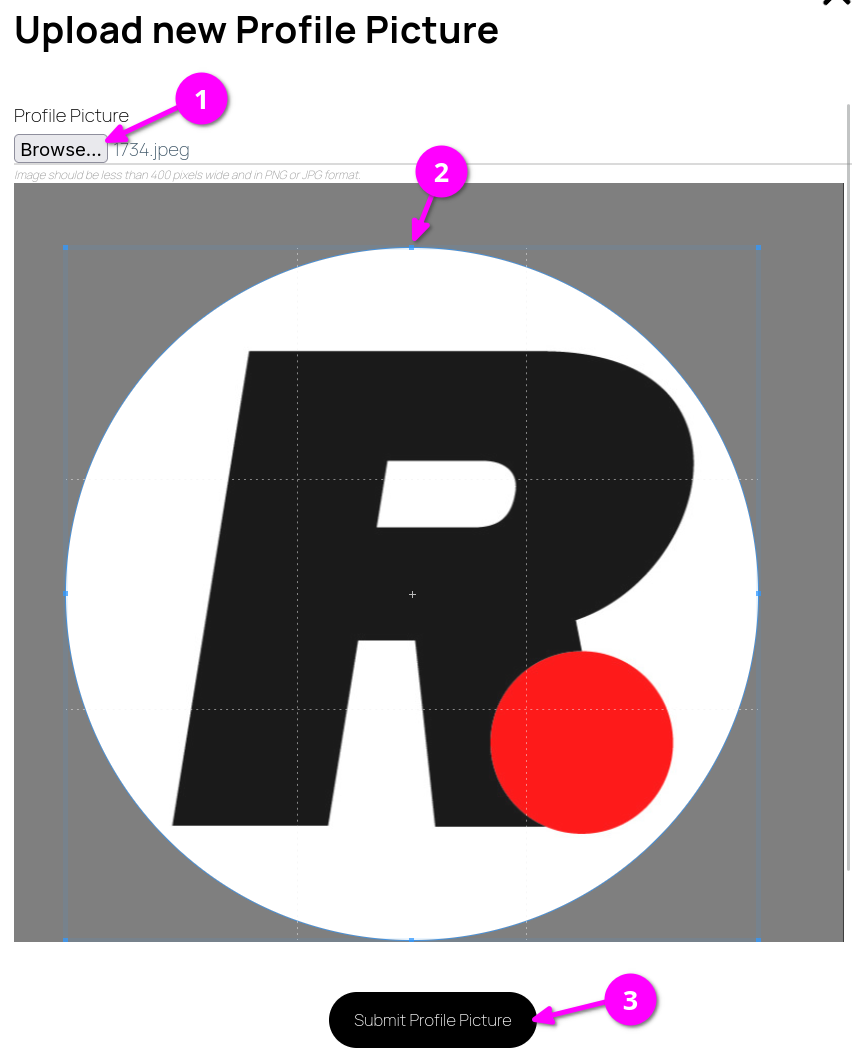
To adjust the brand logo:
- Click Edit Profile.
- Click Browse to choose a company logo image.
- Use the selection tool to crop as needed.
- Click Submit Profile Picture.
Tip
After you set the brand logo, we will use this image for the listing on GDTF Share in the Manufacturers section.
Customize the header image
A header image of 4096 x 768 px should be a good size to fit most situations.
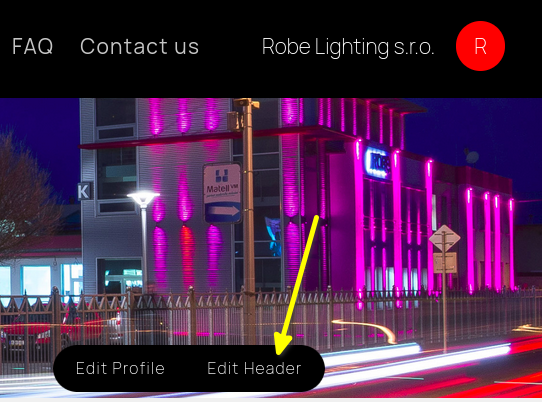
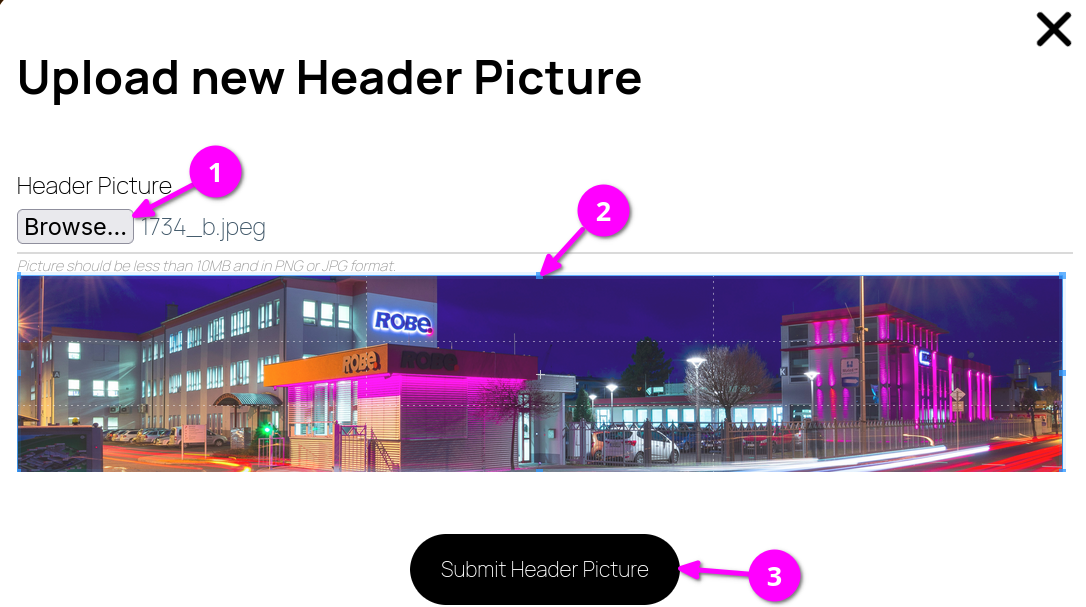
To adjust the header image:
- Click Edit Header.
- Click Browse to choose a header image.
- Use the selection tool to crop as needed.
- Click Submit Header Picture.
Editing fixture details
GDTF files published on the GDTF Share are automatically listed on the Fixtures page. Fixture details can be edited:
- Click the Fixtures button:
 .
. - On the fixture, click the See all revisions button:
 .
. - Click the Edit Fixture Details button:
 .
. - Edit the description and add or replace the image as needed.
- Click Save Changes.
Editing posts
Adding posts
You can add posts that describe your product and the support for MVR & GDTF it provides.
- Click the Home button:
.
- Click the New Post button:
 .
. - Provide a title, text, and an image for the new post.
- Click Submit New Post.
Editing and deleting posts
To edit or delete an existing post, click the Edit or Delete Post button below the post:  .
.
Disable manufacturer page
- Sign in to GDTF Share.
- Click the User icon:
.
- Click the Manufacturer page.
- Click Change.
- Select Inactive.
- Click Update Profile.