Add new attribute
Search for the matching attribute in the search field.
If the name entered into the search field does not match an existing attribute, the option to add a new attribute with the desired name is displayed in the attributes list. To add the new user attribute, click to confirm.
Important
Do only add a new custom attribute if you cannot describe the function with the available attribute list.
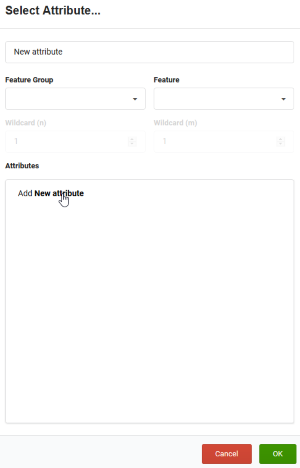
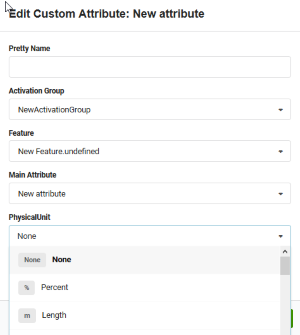
The edit custom attribute windows opens.
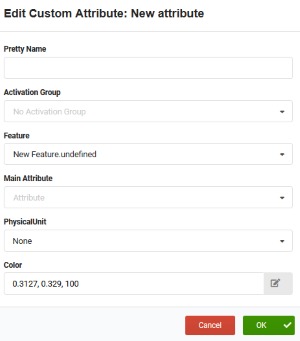
- Enter the pretty name.
- Select the activation group from the drop down menu or create a new activation group.
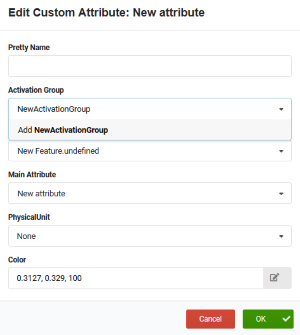
- Select the feature from the drop down menu or create a new feature.
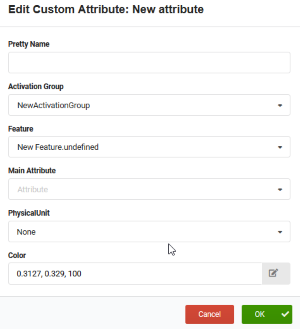
- Select the main attribute from the drop down menu.
- Select the physical unit from the drop down menu
- Click OK and the new attribute is added to the attribute list.
- To view the new attribute, click on the Attribute tab. The new attribute is displayed in the list.
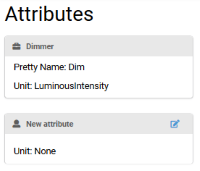
- To edit the new attribute, click on the edit symbol.
Tip
It is not possible to edit predefined attributes. Only custom attributes can be edited.