Upload Files
Clicking the  icon
in the title bar opens the Upload page.
icon
in the title bar opens the Upload page.
Tip
You can also upload your GDTF file by drag and drop on the upload page.
At the top of the page there is a drop area with the text Drop .gdtf file here.
Below it there is a section titled Choose a .gdtf file from your PC.
There is one button called Choose a file. Clicking it opens a file browser
on your computer, where you can select the desired GDTF file. You can close
the upload page at any time by clicking the close icon
 in the upper right
corner.
in the upper right
corner.
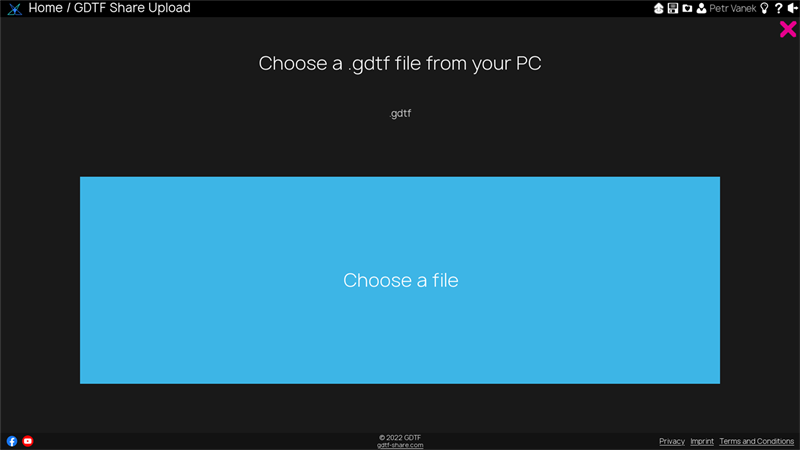
Only .gdtf files are accepted.
When the file is selected, a new button appears. It is called Proceed. This is an example with a GDTF file:
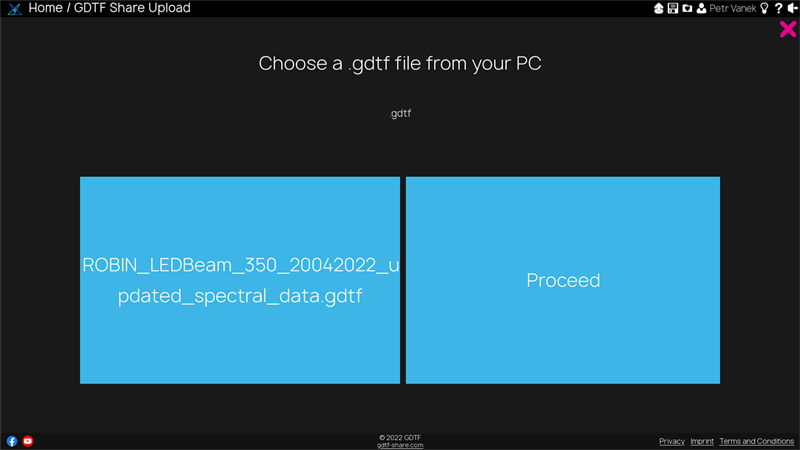
Click the Proceed button to start the upload. A progress display is shown.

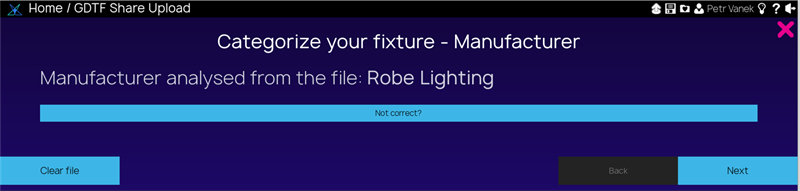
After the file is uploaded, it is analyzed for manufacturer name, device name, and other information. The Share first tries to match an existing manufacturer. If needed, the manufacturer can be changed. The Clear file button clears all information and cancels the upload.
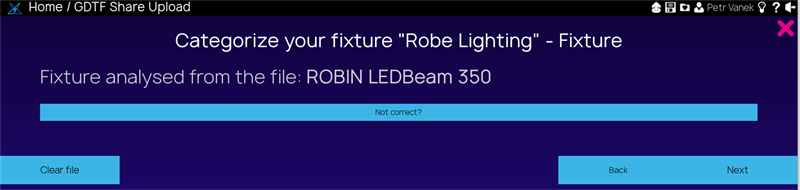
Then the device name is checked and can be changed if needed.
Next, you need to add a revision name for the uploaded file and select a release status. The revision text can be up to 90 characters. For example, if it is the first version of the fixture, it could be called “First version”. If something has changed in the fixture file, it can be useful to describe that in the revision name.
The release status is set to WIP (Work In Progress) by default, allowing you to save your work without publishing it yet. If you are ready to publish the file, set the release status to Release. The release status can also be changed later in the GDTF Share.
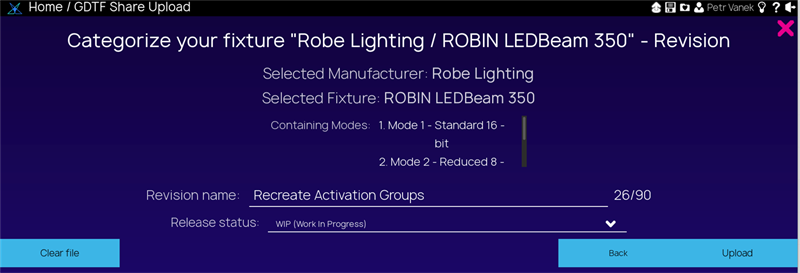
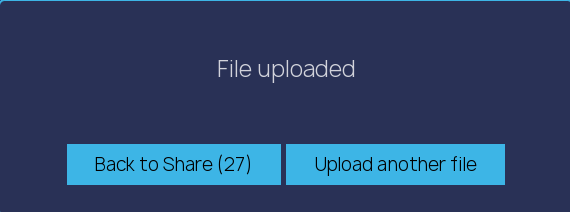
Clicking the Upload button uploads the file to the library. When the upload is complete, you can choose Back to the Share to return to the GDTF Share or Upload another file to continue with another upload.